Switch2Pos — two-position switch
Switch2Pos is for any part with two states: a toggle switch, a slide switch, or a push-button.
The cockpit control copies yours exactly, so when you flip your switch on, the sim's goes on, and
when you flip it off, the sim's goes off too. With a push-button, the sim's button stays pressed
for as long as you hold yours down.
Not quite the right part?
- Three positions (ON–OFF–ON)? Use Switch3Pos.
- A push-button, but the cockpit has a switch that stays put? Use ActionButton. Each press flips the switch, and it stays.
- A switch with a flip-up guard? Use SwitchWithCover2Pos.
In your sketch
const PinRef MASTER_ARM_PIN = PinRef(PA0);

OpenSkyhawk::Switch2Pos masterArm(DCSIN_ARM_MASTER, MASTER_ARM_PIN);
These two lines go near the top of your sketch, above setup(), and they are all the code a
switch needs. From then on the board watches the switch for you and tells DCS every time it
moves.
The first line says where the switch is wired — here, pin PA0 on the board. This is called a
pin address, and it is the only part that changes if you plug the switch
in somewhere else. The second line creates the switch itself. masterArm is a name you choose,
and DCSIN_ARM_MASTER is the cockpit control it operates. Every DCS-BIOS control has a name like
this; DCS-BIOS Integration explains where to find
them.
Wiring
Every switch is wired the same way:
- One leg of the switch to the pin.
- The other leg to GND.
- A 10 kΩ resistor from the pin to 3.3V.
The resistor is called a pull-up. While the switch is open, nothing else connects the pin to anything, so without the resistor it picks up electrical noise and flickers on and off at random. The board doesn't add one for you, so every switch needs its own.
Where the pin itself is depends on what you've plugged the switch into. Pick the tab that matches your build — the wiring and the code look almost identical in each one.
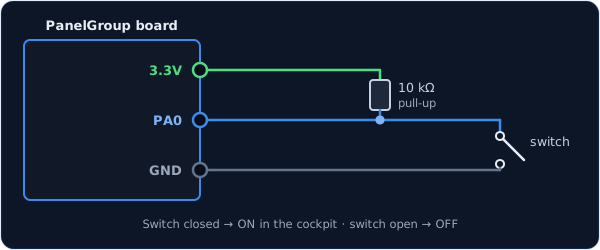
You can use any free pin on the board. Each one has its name (PA0, PB1, and so on)
printed next to it, and that name is what goes in the pin address.
const PinRef MASTER_ARM_PIN = PinRef(PA0);
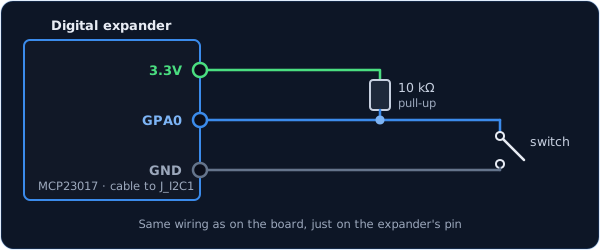
The wiring is exactly the same as on the board, just on one of the expander's pins. Any pin
works except GPA7 and GPB7, which can't read switches because of a fault in the chip.
const PinRef MASTER_ARM_PIN = PinRef(expander1, PORT_A, 0); // GPA0
If this is your first expander, your sketch also needs a couple of lines to set it up. Setting up a digital expander walks through them.
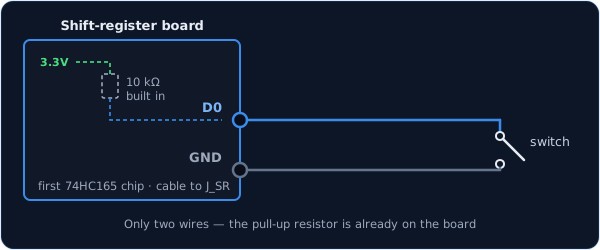
Here you only need two wires. Shift-register boards come with the pull-up resistors already fitted, so the switch just goes between the input and GND.
const PinRef MASTER_ARM_PIN = PinRef(ShiftBus1, 0, 0); // first chip, pin 0
Setting up a shift-register chain explains how the chips are numbered.
The wiring is the same as in the first tab. What changes is the name: instead of a cockpit control, you give it a joystick button ID. Windows then sees an ordinary game-controller button, and you can bind it to anything you like in DCS's controls menu.
const PinRef TRIGGER_PIN = PinRef(PA1);

OpenSkyhawk::Switch2Pos trigger(CTRL_TRIGGER, TRIGGER_PIN);
The gateway's sketch needs a matching line too, which HID Controls shows. DCS-BIOS vs HID explains when a joystick button is the better choice.
Troubleshooting
The switch flickers, or DCS never sees it change. This is almost always a missing pull-up resistor. Check that there is a 10 kΩ resistor between the switch's pin and 3.3V.
The cockpit shows ON when my switch is OFF.
Your switch is mounted or wired the other way round. Rather than rewiring it, add true at the
end of the line and the board will flip it for you:
OpenSkyhawk::Switch2Pos masterArm(DCSIN_ARM_MASTER, MASTER_ARM_PIN, true);
Going further
Every mechanical switch bounces for a few thousandths of a second as its contacts close. To filter that out, a change only counts once the switch has stayed put for 20 ms.
When the board starts up, and whenever DCS asks for it, every switch reports its current position. So if you moved a switch while DCS wasn't running, the sim catches up as soon as it connects.
Every detail of the class is in the API reference.