OpenSkyhawk Client
OpenSkyhawk Client is the recommended way to connect your cockpit to DCS. It is a cross-platform GUI that is both the bridge and the monitor — auto-detecting the SimGateway, relaying the DCS-BIOS stream both ways, and surfacing live connection, aircraft, and telemetry status.
The alternative is the legacy connect-serial-port.cmd / socat relay shipped with
DCS-BIOS. That script still works but is Windows-only, has no UI, and requires selecting the
COM port manually. The client replaces it on both Windows and macOS.
Download from GitHub Releases.
Windows (.exe installer) and macOS (.dmg) builds are provided.
Windows SmartScreen
The installer is currently unsigned. Click More info → Run anyway when Windows SmartScreen prompts. This is expected for an open-source project without a code-signing certificate.
Source modes
The client runs in one of three modes, selected on the Connection tab:
| Mode | What it does | Use when |
|---|---|---|
| Bridge | Relays DCS-BIOS between the sim and the SimGateway serial port. Also reads the HID joystick interface. | Flying with the cockpit connected. |
| Monitor | Reads the DCS-BIOS stream off the LAN with no device attached. Relay and HID are inactive. | Inspecting the stream from a second machine, or testing without hardware. |
| Replay | Feeds a recorded capture file into the parser and UI with no DCS running. Optionally writes the replay to a connected SimGateway. | Bench-testing panels, debugging without the sim. |
Getting started
- Launch the app and go to the Connection tab.
- Select Bridge, Monitor, or Replay mode.
- In Bridge or Monitor mode, set the DCS host and transport:
- Loopback multicast — DCS on the same machine as the client (default).
- TCP to host — DCS on a separate PC; enter
<DCS-PC-IP>:7778. No script needed on the DCS host — just open Windows Firewall for inbound TCP 7778. - Unicast listen — if you've edited
BIOSConfig.luato send a unicast export.
- Press Start relay (Bridge/Monitor) or Start (Replay).
Tabs
Connection
Where you choose how to connect and watch the link come up. The device card shows the
auto-detected SimGateway — identity (A-4E Skyhawk), USB VID/PID 0x2E8A / 0x4134, the
serial port (scanning… until the device is found), the CDC serial + HID interfaces, and
a Relaying / Stopped indicator. An Auto-reconnect toggle re-opens the port
automatically if the cockpit is unplugged and replugged.
Reading the SimGateway LEDs
The gateway board has two status LEDs you can read at a glance: green solid = DCS-BIOS data flowing, green slow blink = connected but idle, red solid = no PC connected, red fast blink = a UART link fault. See SimGateway → Status LEDs for the full table.
The Source Mode, DCS Link (host + transport), and Record controls live on this tab too — covered under Getting started and Recording and replay.
A Connected nodes card lists the PanelGroup controllers reported over the CAN bus — node id, uptime, receive count, and bus-health flags (BOFF / EPVF / TEC / REC). This is Bridge mode only and depends on a firmware node-reporting feature still in progress, so it currently shows "No nodes reported" until that firmware ships.
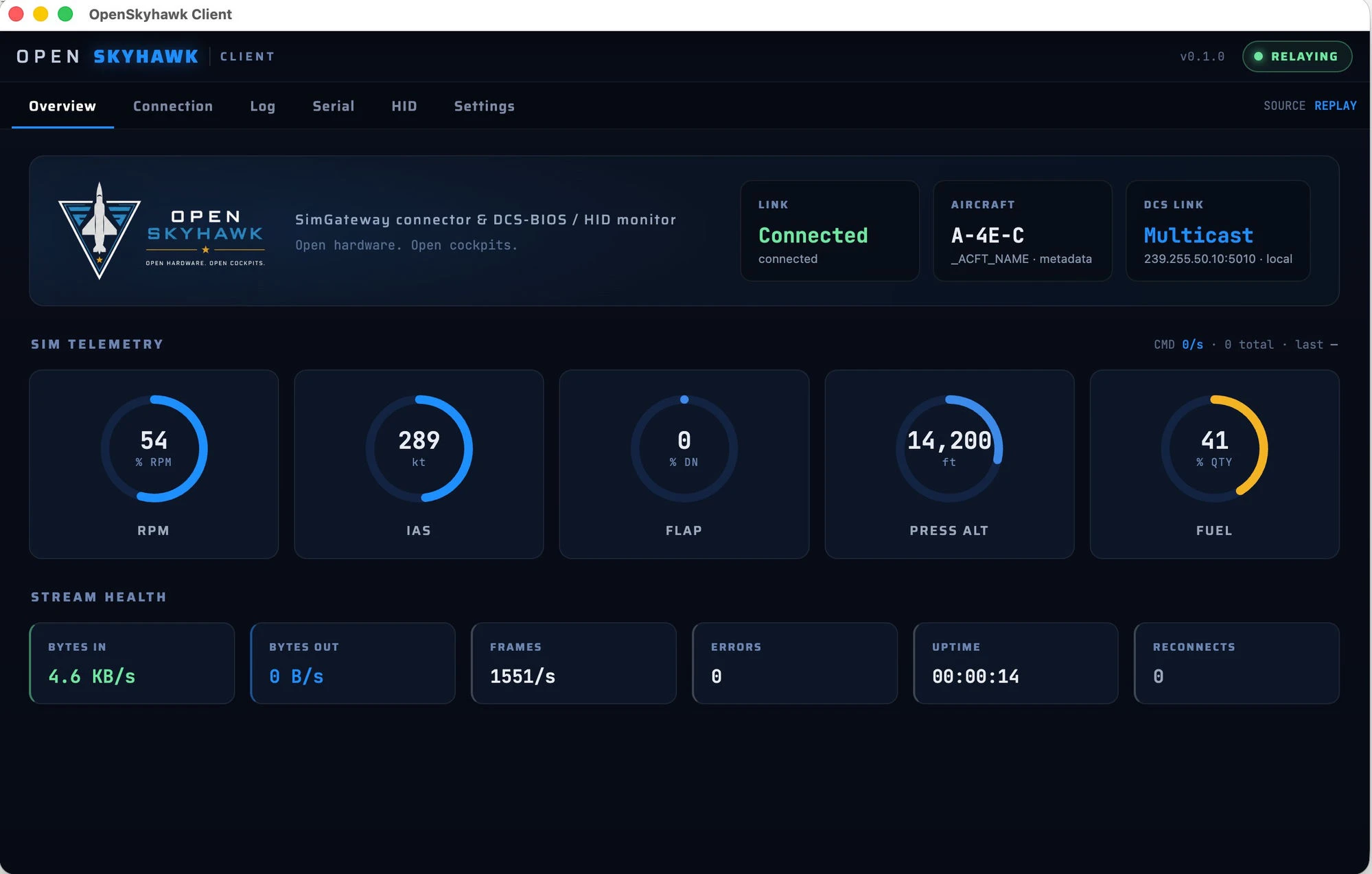
Overview
The landing tab — a single glance confirms the cockpit is alive. Three status tiles across
the top show Link (idle / connecting / connected), Aircraft (the live module name —
from _ACFT_NAME metadata, or inferred from the address range when metadata is absent), and
DCS Link (the active transport and host).
Sim Telemetry below is five live gauges — RPM, IAS (kt), Flap, Press Alt (ft), Fuel —
with a command-activity readout alongside (commands/sec · total · last command sent). A
gauge reads — for any value the sim isn't exporting.
At the bottom, Stream Health tracks the relay itself: Bytes In / Bytes Out (each direction), Frames/s, parse Errors, Uptime, and Reconnects.
If a non-A-4E module loads, an amber warning banner appears — named decode is A-4E-C only, but relaying and stats continue and the log falls back to raw addresses.
Log
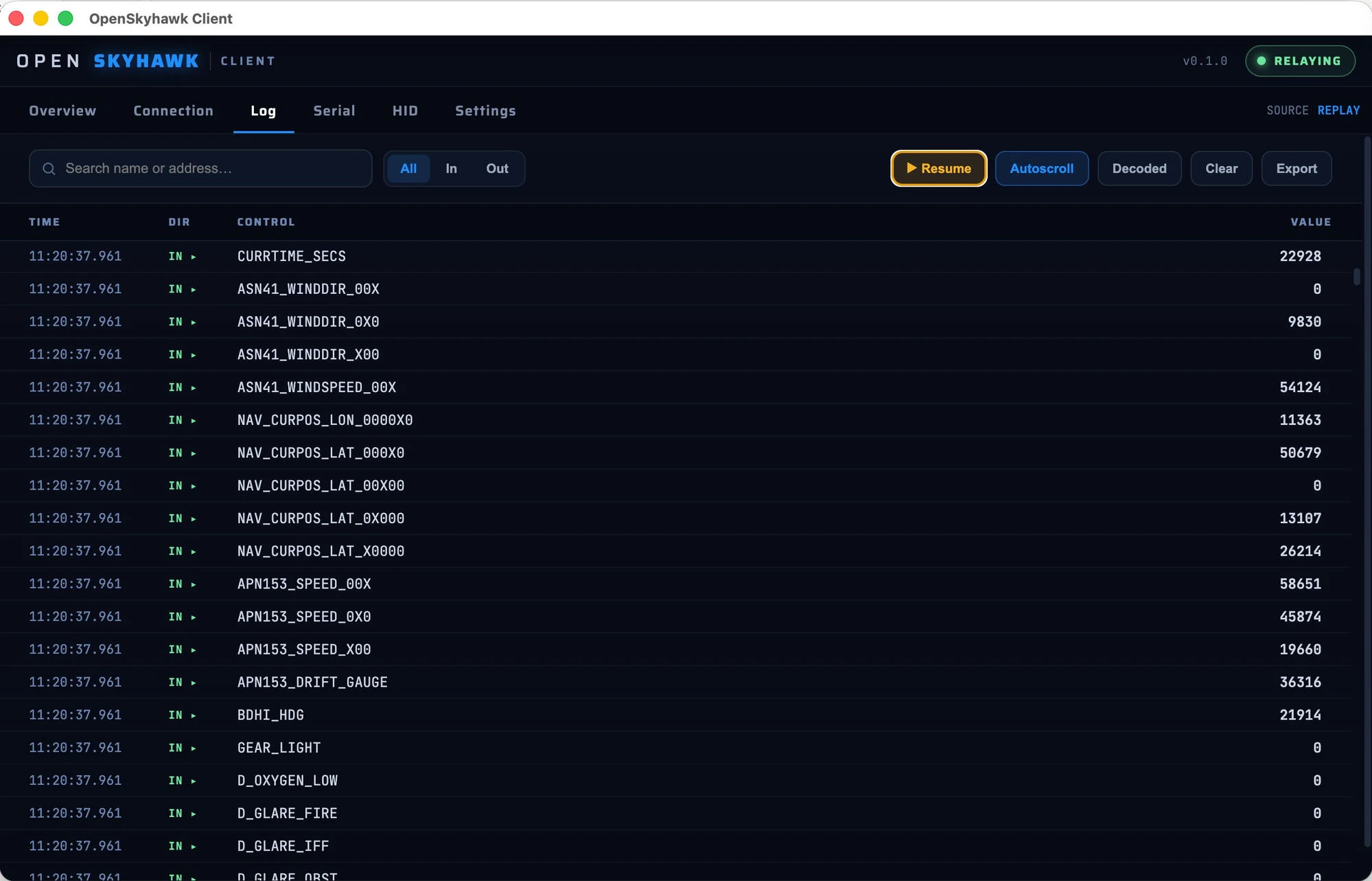
A decoded DCS-BIOS event stream — control name, address, value, and direction — updated live. Filter by name or address, pause autoscroll, clear the buffer, export to TSV, or toggle raw hex mode.
HID
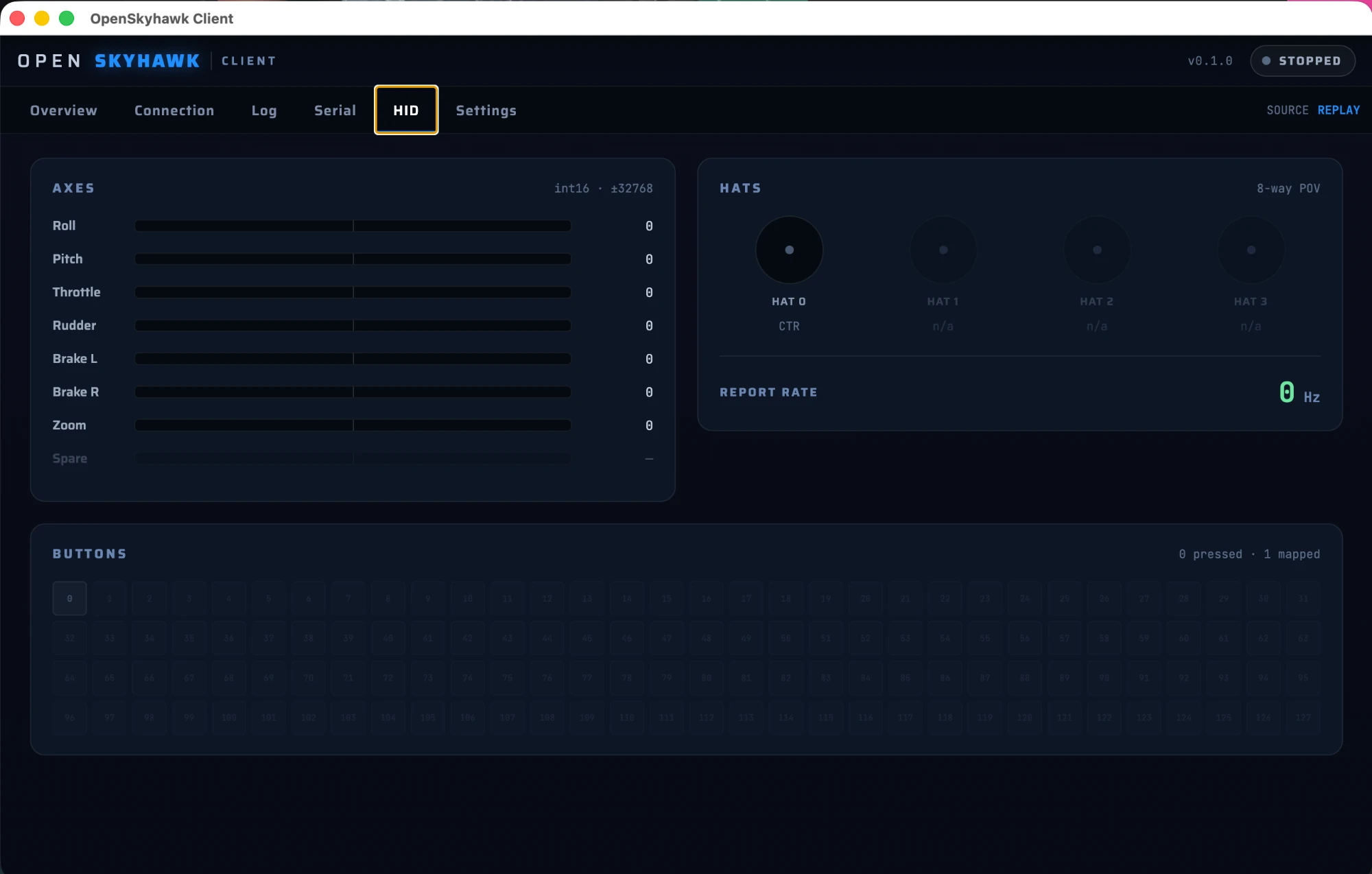
Live status of every axis, button, and hat switch on the SimGateway's HID interface, plus the report rate. Reports are sent on change, so the panel shows an idle state ("no recent report") when nothing is moving. Useful for verifying the SimGateway is outputting the correct values before binding in DCS.
Serial
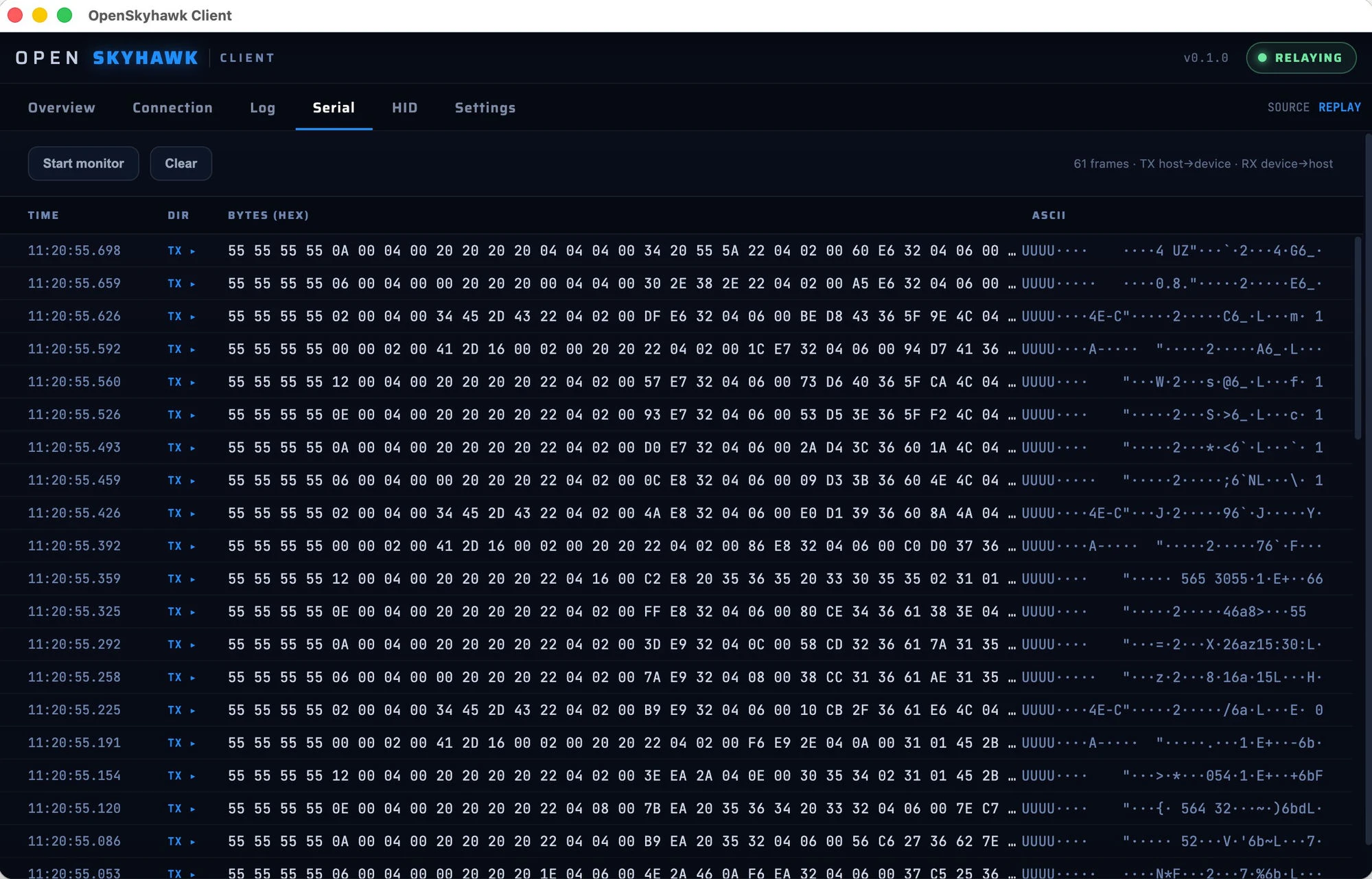
Raw TX/RX hex + ASCII monitor for the CDC serial link (Bridge mode only). Toggle it on to watch the DCS-BIOS byte stream directly, or to confirm the SimGateway is receiving commands.
Settings
Developer and diagnostic controls: debug logging toggle (writes <userData>/debug.log),
serial port dump (logs all detected ports and their metadata), and a Reveal button to open
the log file. Most users will never need this tab.
Recording and replay
While relaying in Bridge or Monitor mode, the Record card on the Connection tab lets you
capture the live DCS-BIOS stream to a .json file. Stop recording to save. The file can
then be loaded in Replay mode on any machine — no DCS or SimGateway required. Useful for
reproducing a specific flight state on the bench or sharing a session for debugging.